Get Transcript by Mosh Bari

More leads for your business. Three minutes a post, from your phone.

Leads come to the people who get seen. A helpful comment under a big creator's post, a thread that keeps people reading, a text post that never needs your face on camera: do those every day and people start finding you. Get Transcript and any AI app turn each one into a three-minute job, on your phone, with no computer and nothing to write from scratch.

Made for people with a 9-to-5 who don't have the time or the energy to do it by hand. This page is also the tutorial. Read it once and you'll know the whole app. Start the story ↓

New RANT: talk on camera over any video, right on your phone. See chapter 8 ↓
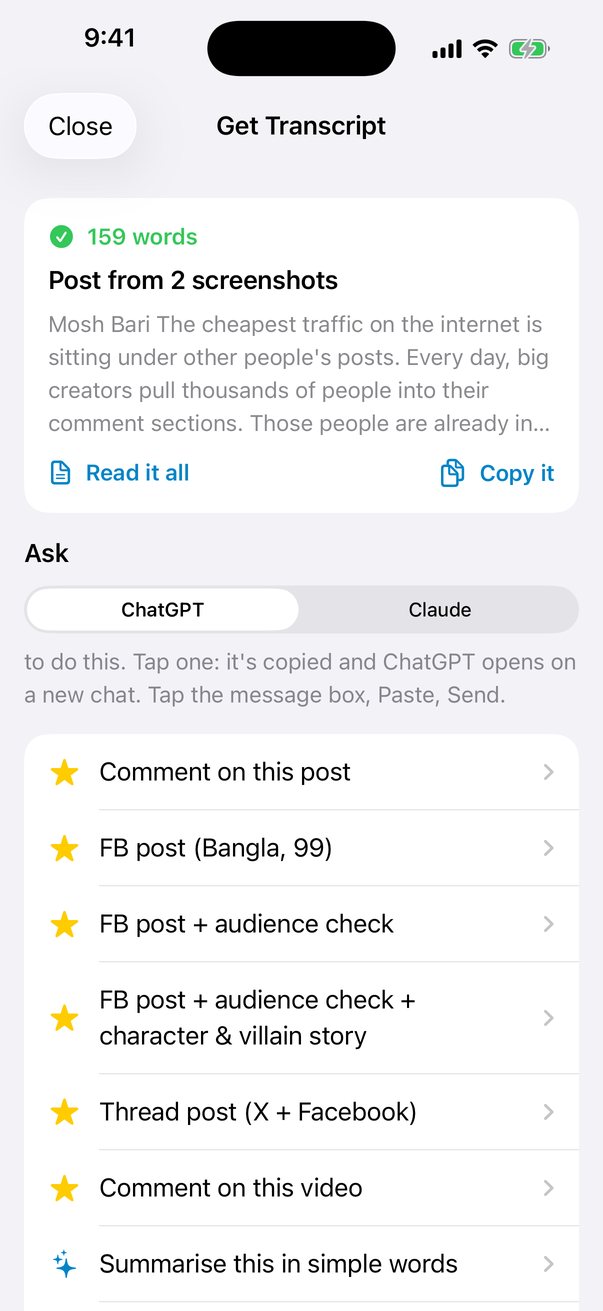
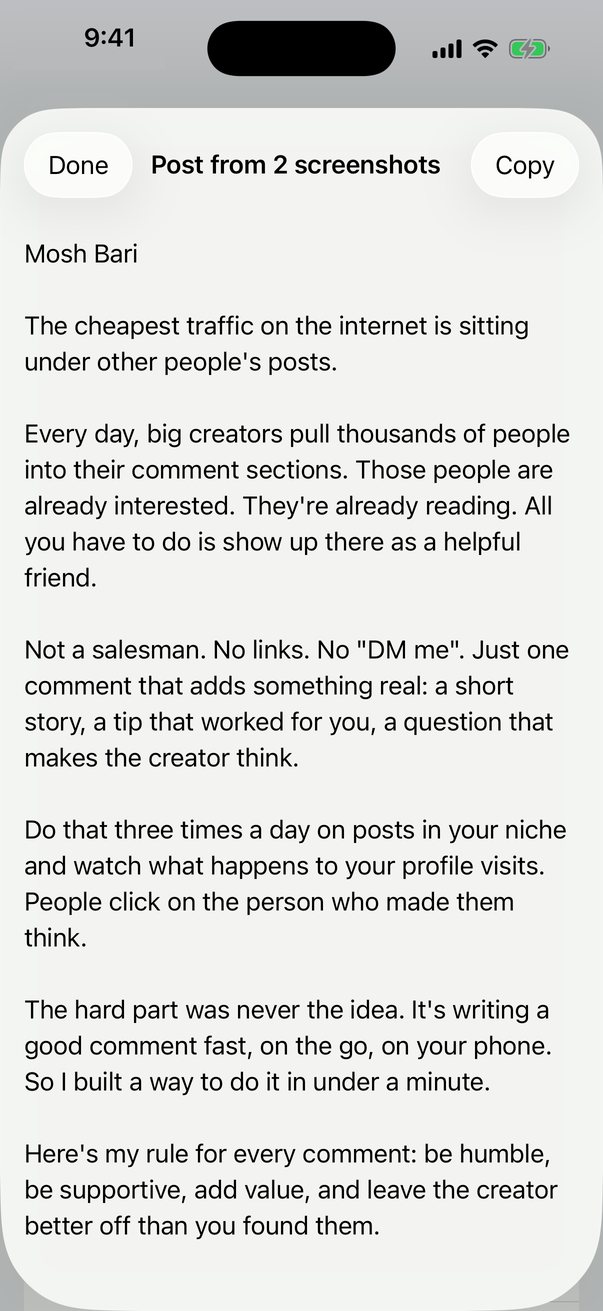
Get Transcript has read a post: 159 words, with Comment on this post at the top of the list

A post read for you, and the comment one tap away

Start here: 4 short videos

Watch it work on a real phone

A faceless text post, a thread post, a comment under someone else's post, and a RANT video. Each one start to finish.

Turn any video into a Facebook post
Turn any video into a thread post
Get free traffic with AI comments
Make RANT videos on your phone
What you getLeads for your business

People who saw you being useful, clicking on your profile and sending you a message.

come from
How you get themComments, threads and faceless posts

Show up every day where your buyers already are, without a camera and without ads.

made easy by
What does the workThis app + any AI app

Get Transcript gets the words from any video or post; ChatGPT or Claude writes. You check it and post.
~3 minper post or comment
No computerit all happens on your phone
Freeapp, and free ChatGPT works
1Get the words

Every good post starts with something you watched.

You're scrolling YouTube on the bus, or in your lunch break, and a video stops you. A clear idea, a great story, a point your buyers need to hear. It would make a brilliant post, in your own words, for your own people.

But a video is sound, not words. To write about it you'd have to watch it again with a notepad, pause every ten seconds, and type. On a phone, nobody does that. The idea is gone by tomorrow.
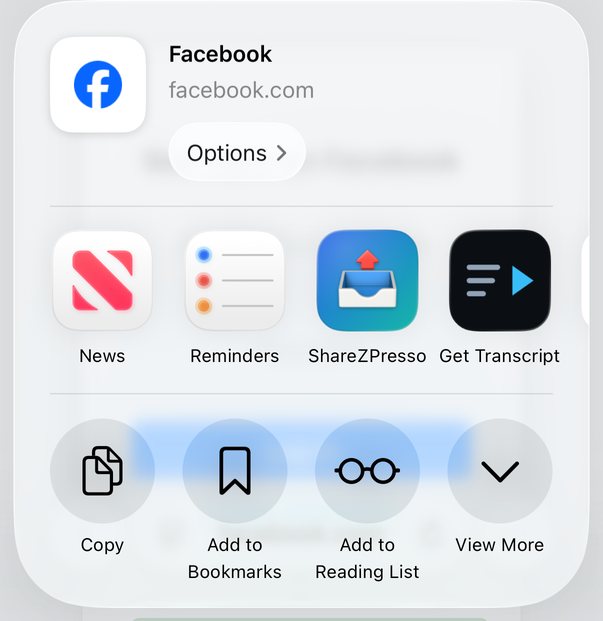
So skip the typing. Tap Share on the video, choose Get Transcript, and a few seconds later every word is there, with the title and the link. It works for YouTube, TikTok, Instagram, Facebook and X, and for your own voice notes and screen recordings too.

Try it now

  1. Open a video in YouTube and tap Share.
  2. Swipe the row of apps to the right, tap More, and choose Get Transcript.
  3. The first time, tap Edit and the green + next to Get Transcript, so it sits at the front of the row from now on.
  4. Wait a few seconds. You'll see how many words it found, with Read it all and Copy it.
iPhone Share menu with Get Transcript in the row of apps

Share → Get Transcript

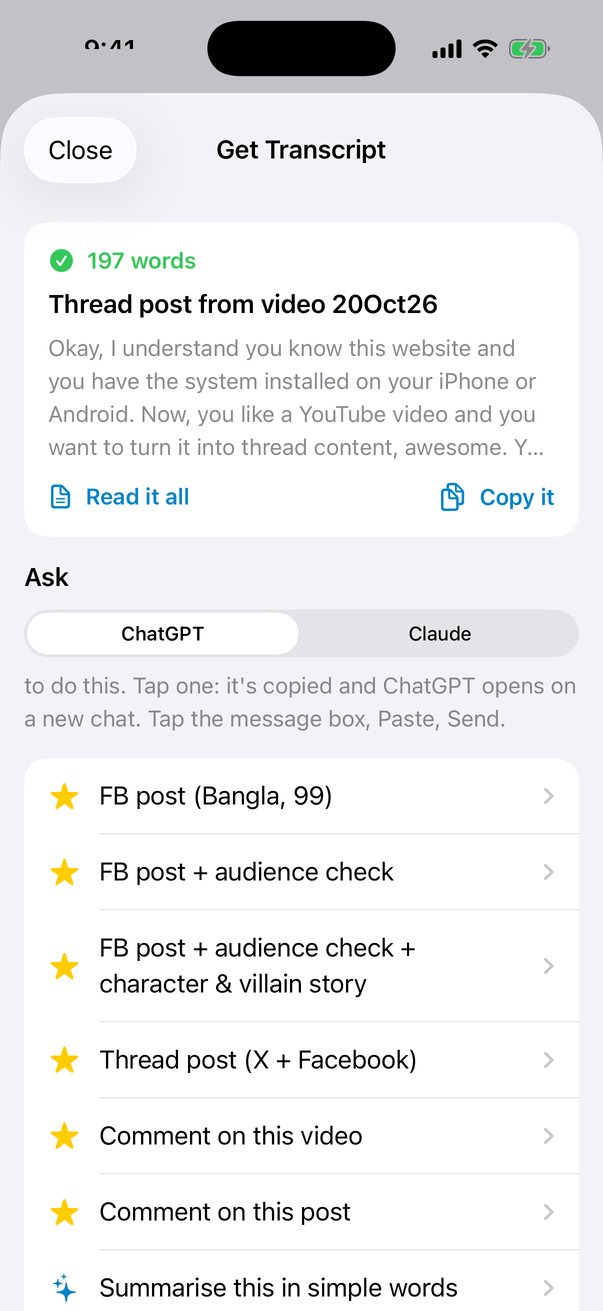
Get Transcript result: 197 words from a video, with the list of prompts

Every word, seconds later

2Hand them to ChatGPT

The words are only as good as what you ask for.

Under the words sits a list of ready-made instructions for faceless text posts, the kind you post without ever showing your face: a Facebook post in Bangla and English, a post with an audience check, a story with a character and a villain, a thread, a comment, a summary, the key points. Pick one, and the instruction plus the whole transcript go to ChatGPT together.

Copying, switching apps, pasting the transcript, then typing a good prompt from memory: that's where most people give up, or end up with a bland "here's a summary" post that sounds like everyone else's.
One tap does all of it. Tap the instruction you want: everything is copied and ChatGPT opens. Tap the message box, Paste, and send. Then the post prompts do something most people never ask for: ChatGPT checks its own post against your audience, finds what's wrong, and writes it again. From one video you get three versions, ending with a story that has a character and a villain.

Your first post

  1. Under Ask, keep ChatGPT picked and tap FB post + audience check + character & villain story (third from the top).
  2. In ChatGPT, tap the message box, Paste, then the send arrow.
  3. Let it write, check and rewrite. The last version is the story you want. AI can be wrong, so read it: you're the editor.
  4. Ask for an image with your image prompt. Not quite right? Ask for another version that speaks to your audience's pain and what they want, and keep it simple.
  5. Download the image and copy the story. In Facebook: add the image, paste, Next, Post.

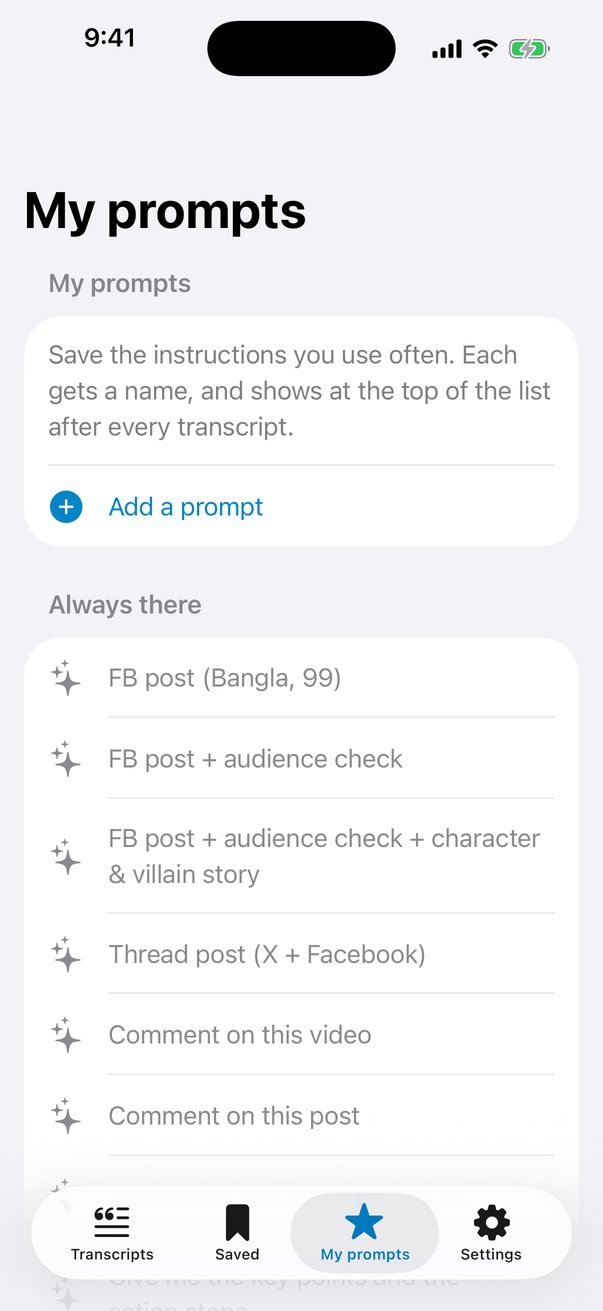
Have instructions of your own that work for you? Save them in My prompts with a name. They show at the top of the list after every transcript, on your phone and on this website.

The list of instructions under a transcript

Tap one, Paste, Send

My prompts screen with the built-in instructions

Add your own

3A thread from any video

One video, a whole week of content.

A thread keeps people reading: one strong opening post, then a comment after comment that each adds one more idea. It's one of the best ways to stay in front of people on Facebook and X.

Writing one by hand means splitting the idea into pieces, keeping each piece short, and making them flow. It's an hour of work for one post.
Choose Thread post (X + Facebook) instead. ChatGPT writes an X version first, then a Facebook version: the main post plus every comment, each in its own box with a copy button. The last comment is your call to action.
Share menu with Get Transcript
1. Share the videoto Get Transcript
Thread post in the list of instructions
2. Tap Thread postthen Paste in ChatGPT

3. Post the main post

  1. Make an image with your image prompt and save it.
  2. Copy the main post.
  3. In Facebook: add the image, paste, post.

4. Add the comments

  1. Copy comment 1, paste, send.
  2. Then 2, 3, 4… in order.
  3. The last one is your call to action.
4Posts with no video

A post of words has no transcript to get.

Some of the best things on Facebook, LinkedIn and Threads are written posts, and the gold is often in the comments under them. Share one of those to Get Transcript, and it knows there's nothing to transcribe.

The usual fix is screenshots: one, scroll, another, scroll, another. Then you pick them out of your gallery in the right order, attach them to ChatGPT one by one, and hope it can read them all.
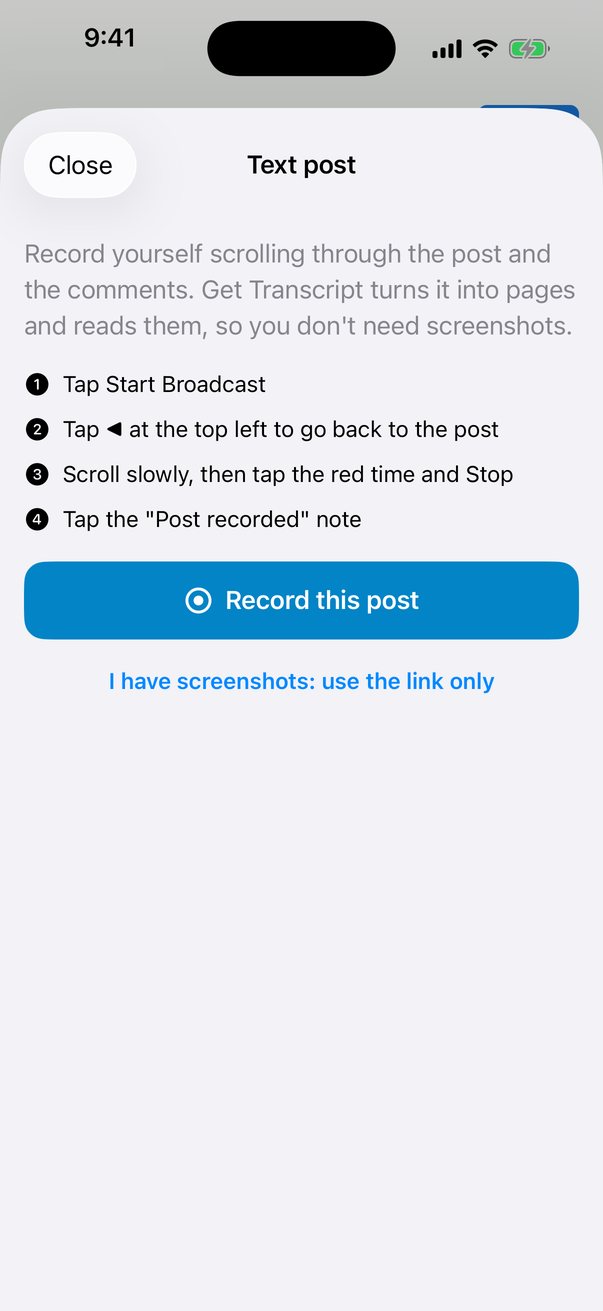
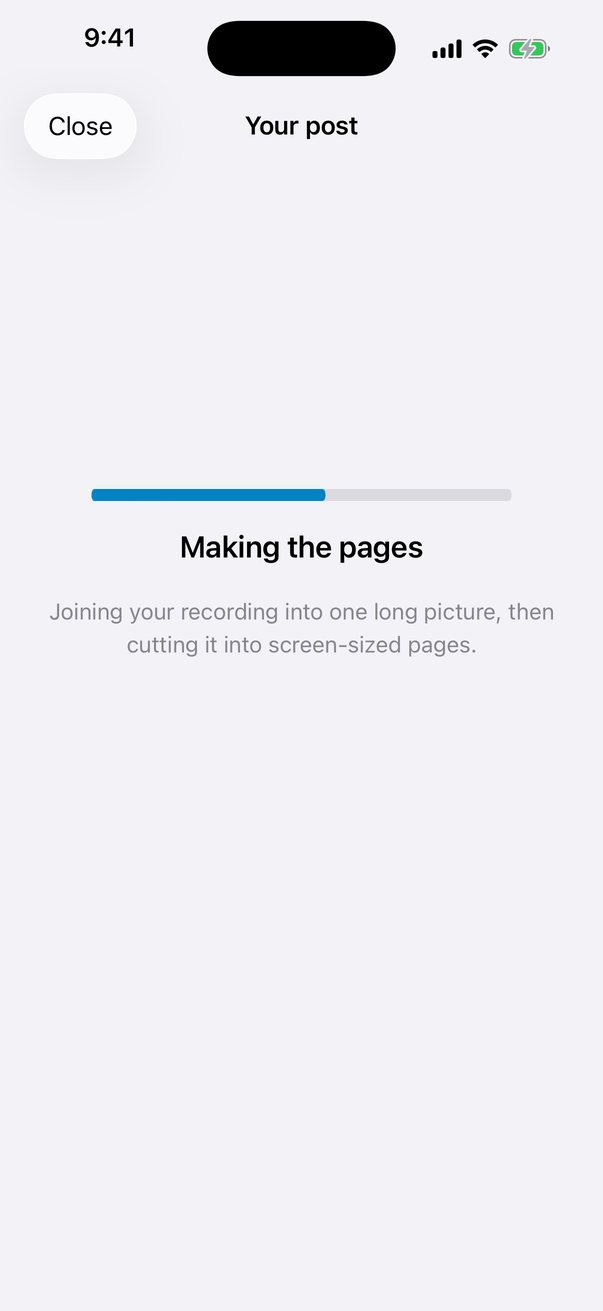
Get Transcript records it instead. It offers Record this post. You scroll through the post and the comments you want, and stop. It joins the recording into one long picture, cuts it into screen-sized pages, and reads every word on them. The pages also go into your Photos.

Record a post

  1. On the post, tap Share → Get Transcript → Record this post.
  2. iPhone: tap Start Broadcast, then ◀ at the top left to go back to the post. Android: tap Start.
  3. Scroll down slowly through the post and the comments you want.
  4. iPhone: tap the red time at the top, then Stop. Android: pull down the notifications and tap Stop.
  5. Tap the "Post recorded" note. The post is read and ready.

No Share button handy? On the app's home screen, tap Capture a text post: record and scroll, start recording, and open the post yourself.

Text post screen with the Record this post button

Record this post

Making the pages, with a progress bar

Making the pages

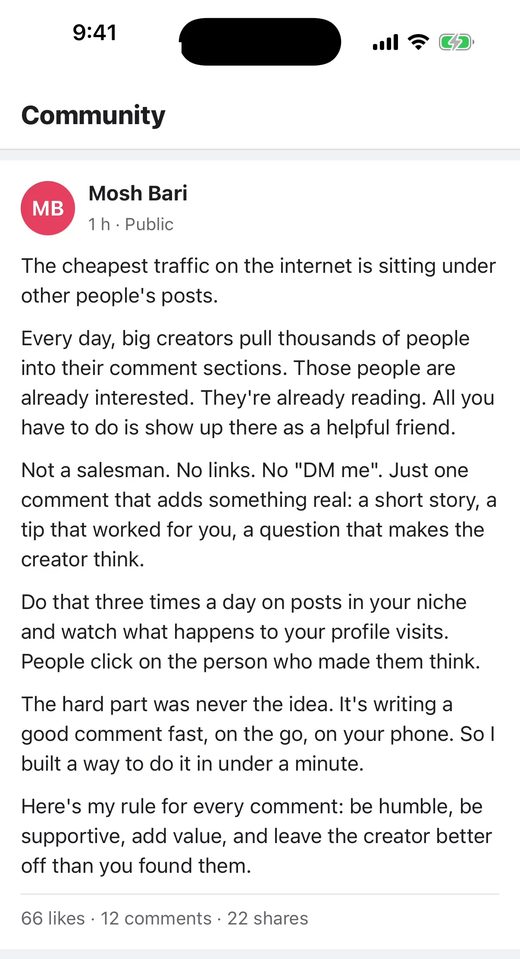
Page 1: the post
Page 1
Page 2: the comments
Page 2
5A comment that brings people back

The cheapest leads are under other people's posts.

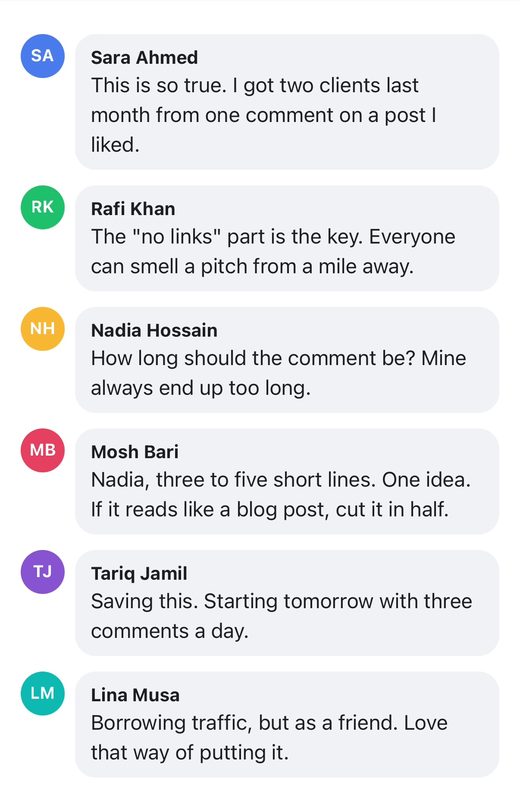
Big creators pull thousands of people into their comment sections every day. Those people are already interested, and already reading. Show up there with a comment that adds something real, and some of them click on you, read your profile and message you. You're borrowing traffic, and it costs you nothing.

Borrow it like a good guest, though. A "DM me", a link, a pitch, and the creator bans you. And a genuinely helpful comment takes thought: read the whole post, read what others said, find something worth adding. After a full day at work, doing that well three times a day is exactly what never happens.
After a post is read, Comment on this post sits at the top of the list. Tap it, Paste in ChatGPT, send. It has the whole post and the comments as text, so you don't attach a single screenshot. It writes a humble, supportive comment that adds value, checks its own quality, and puts the post's link on the first line, so you can always find the post again.

From post to comment

  1. Record the post (chapter 4), then tap "Post recorded".
  2. Tap Comment on this post.
  3. In ChatGPT: Paste, send. Read the comment it writes.
  4. Copy it, go back to the post (or tap the link), paste and post.

Want to see the whole post as text first? Tap Read it all. You can select and copy any part of it.

Post read: Comment on this post at the top of the list

Comment on this post, first

The whole post as text

The whole post, as text

6Save it for later

The best ideas show up when you're busy.

You're scrolling in a queue, between meetings, half-watching. You see a video or a post you'd love to use. Right now you can't stop and write.

Screenshots and "I'll remember it" don't work. By tonight it's buried under a hundred other things, and Facebook won't show you that post again.
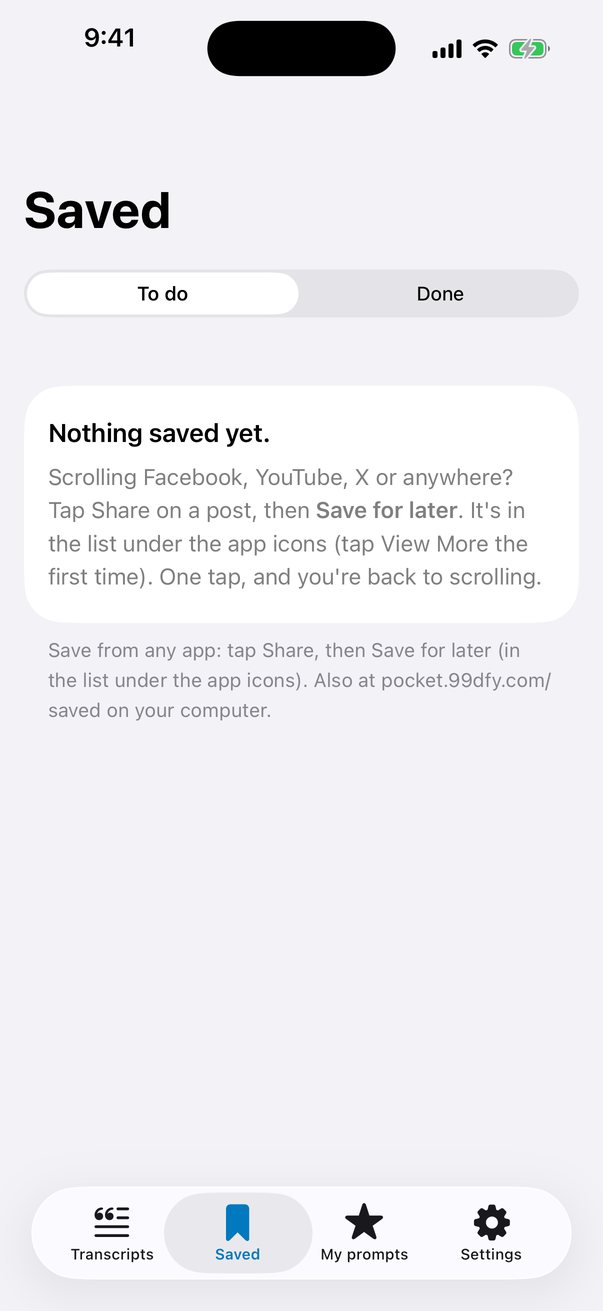
Tap Share → Save for later. One tap, a quick "Saved", and you're back to scrolling. When you have time, open the Saved tab: everything you kept is waiting. Tap one to get its words and write your post. Mark it done when you've used it.

Keep it in one tap

  1. Tap Share on a post or video.
  2. Choose Save for later in the list under the app icons (tap View More the first time).
  3. Later: open Get Transcript → Saved.
Saved tab

Your Saved list

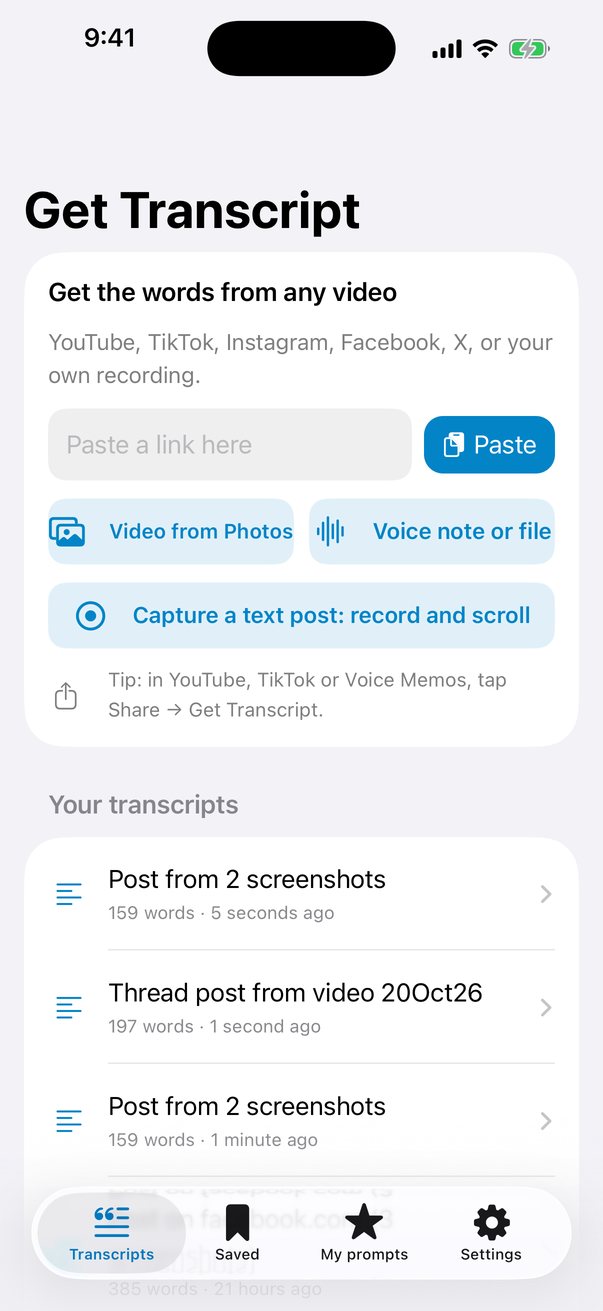
Get Transcript home screen

Everything in one place

7Write it here, see the Community

Write without leaving the app, and never run out of ideas.

Under every transcript there's also Make it here. Pick a post, a thread or a comment, and Get Transcript writes it for you on the spot. No copying, no pasting, no ChatGPT. Every day you get one post, one thread and one comment free.

Writing on your own gets lonely, and some mornings the ideas just dry up. You open Facebook, stare at the box, and post nothing.
That's what the Community tab is for. It shows what other people made from the videos and posts they found, each one with the name its maker picked. Scroll it for ideas, see what's working for others, and use it to spark your own. Your own pieces are under Mine.

The Community fills up on its own, too. When you use one of the post, thread or comment prompts in ChatGPT and come back to Get Transcript, the answer you copied is added for you. A note says "Added to the Community", with Undo right there if you'd rather keep that one to yourself.

Write one here

  1. Get the words from a video or a post (chapters 1 and 4).
  2. Under the transcript, tap Make it here and choose Post, Thread or Comment.
  3. The first time, agree to the Community rules and pick the name people will see.
  4. Read it, copy it, post it. It's kept under Community → Mine.

Rather not share what you make in ChatGPT? Turn off Share what I make in ChatGPT in Settings. You can change your name there too.

Free, every day

Written for you inside the app with Make it here.

1post
1thread
1comment

In the Community

  1. Everyone: what other people made, with their names.
  2. Mine: everything you made, in one place.
  3. Your ChatGPT answers are added for you, with Undo.
  4. See something that isn't right? Report it or block its maker. Delete your own any time.
8RANT: talk over any video

Got something to say about a video? Say it on camera.

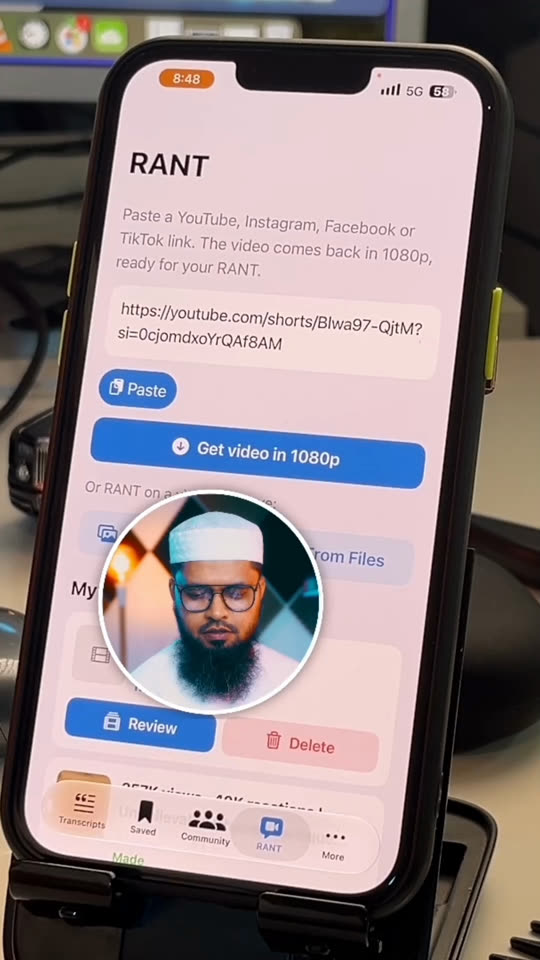
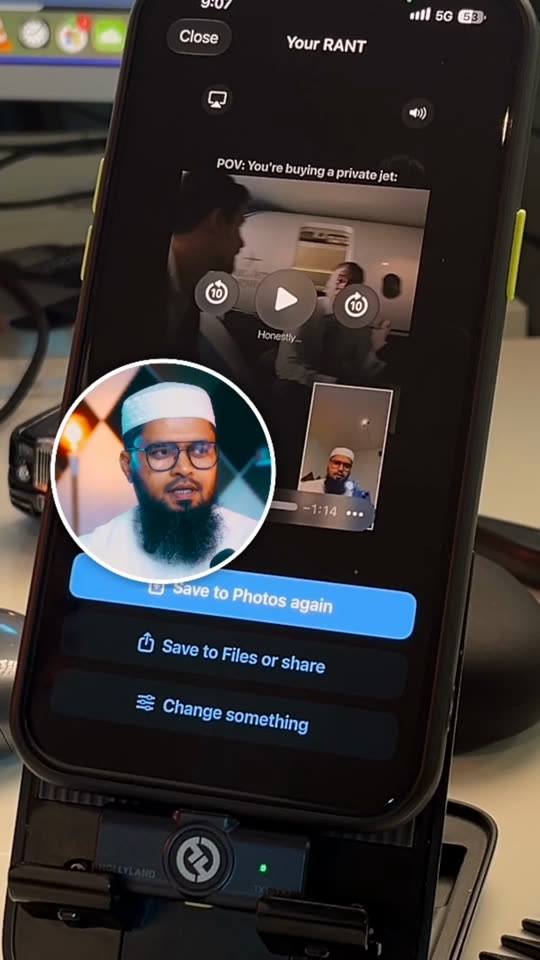
Paste a link, talk over the video, and the app makes the finished RANT for you, captions and all. Just your phone.

  1. RANT tab on a real iPhone: a pasted link and the Get video in 1080p button
    1Paste the link

    Tap Get video in 1080p. Leave the screen while it downloads.

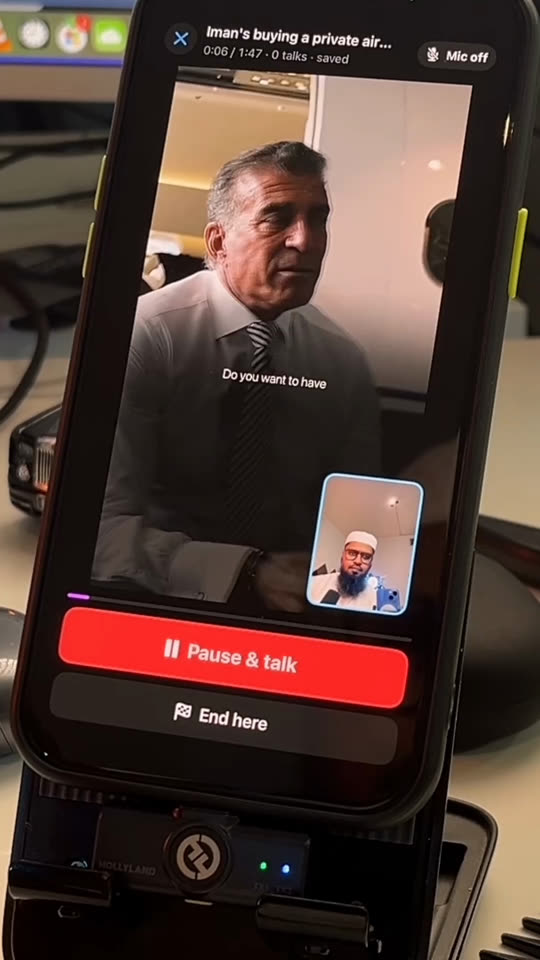
  2. The video playing with your face in a small box, and the Pause & talk button
    2Play, pause, talk

    Pause when you've got something to say. Keep it or Redo it.

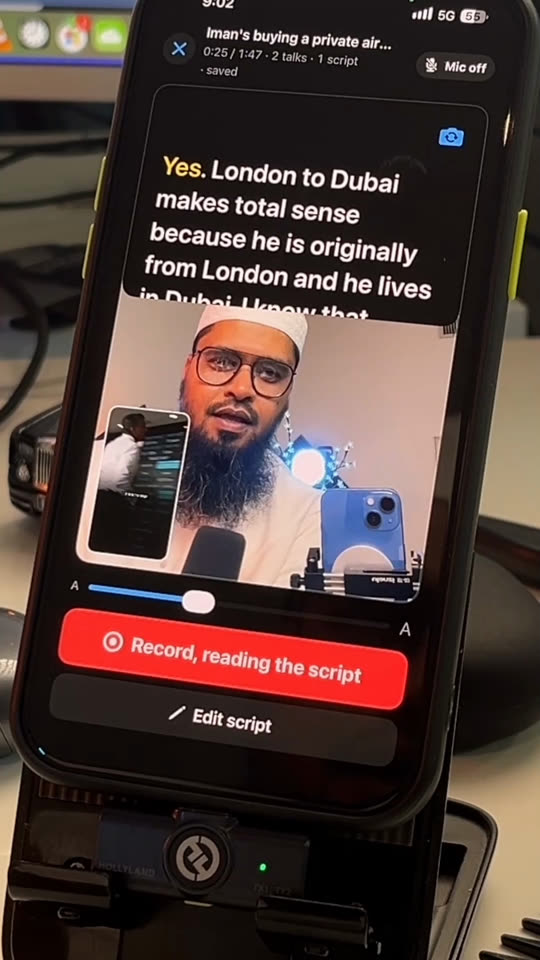
  3. Teleprompter showing your script above the camera, with Record, reading the script
    3Read a script

    Go blank? Dictate a script. The teleprompter follows your voice, English or Bangla.

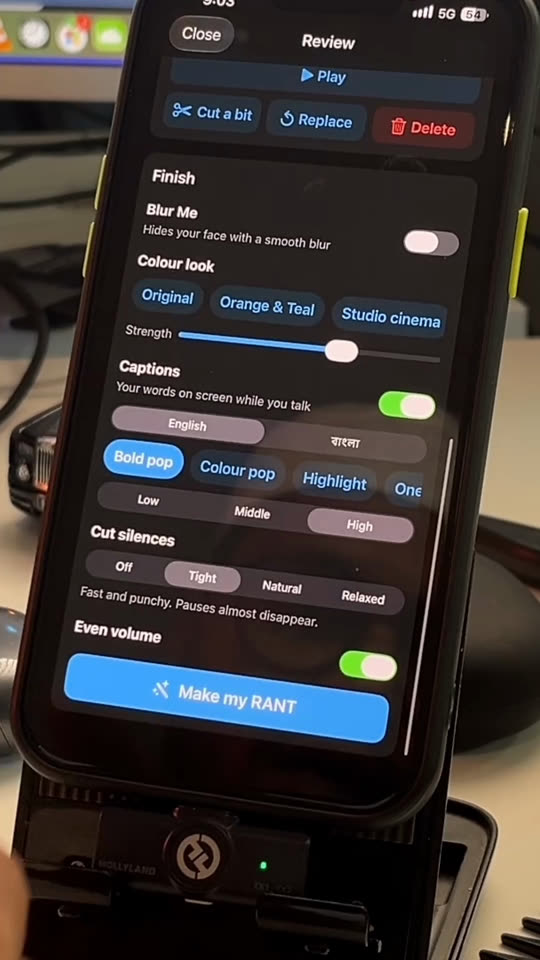
  4. Review screen: Blur Me, colour look, captions, cut silences and Make my RANT
    4Polish it

    Cut a bit, blur your face, captions high, middle or low. Silences cut for you.

  5. Your RANT is ready: Save to Photos, Save to Files or share
    5Make my RANT

    It's made on our server. Go do something else. It lands in Photos.

Watch a real one

Made start to finish on a phone: a teleprompter script, captions, silences cut. No computer, no editing app.

1080pmade on our server
Saved as you goeven if the app closes
RANT on this toosee what others pick in Community

In the Android app now. On iPhone it's in version 1.0.5, with Apple for review right now.

The whole content system is in your phone. What's stopping you?

Who it's for

Built for people with a 9-to-5.

You have a job. You also have a business, or the start of one, and you know it needs you to show up online every day. But by the time you're home, there's no time left and no energy for writing posts and comments by hand, and you're not going to sit at a computer for it either.

So do it in the gaps. On the bus, in the lunch queue, while the kettle boils. Share, tap, paste, post. About three minutes each, and your marketing keeps working while you keep your job.
1 commentwhile the kettle boils
1 threadin your lunch break
1 poston the way home
Watch me do it

See it on a real phone

Four short videos, one for each way to get leads: a faceless text post, a thread post, a comment on someone else's post, and a RANT video.

Turn any video into a Facebook post
Turn any video into a thread post
Get free traffic with AI comments
Make RANT videos on your phone
Get the app

Install it in under a minute

Free on both. Add the free ChatGPT app (or Claude), and that's your whole marketing kit.

iPhone

  1. Tap App Store below, then Get.
  2. Open a video in YouTube, tap Share → More → Edit, and tap the green + next to Get Transcript.
  3. The first time you record a post, allow notifications, so the "Post recorded" note can show.
  4. The first time you RANT, allow the camera and the microphone.

Android

  1. Tap Android below on your phone. GetTranscript.apk downloads.
  2. Open it. If Android asks, tap Settings, turn on Allow from this source, then go back.
  3. Tap Install, then Open. Get Transcript is now in every app's Share menu.
Is it really free?

Yes. YouTube videos have no limit. Posts, voice notes and other videos can be read up to 20 times a day. Make it here writes one post, one thread and one comment for you every day, free.

Who sees what I put in the Community?

Everyone who uses the app, with the name you picked. Answers you copy from ChatGPT with a post, thread or comment prompt are added for you, and the "Added to the Community" note has an Undo button. You can delete your own pieces any time, or turn off "Share what I make in ChatGPT" in Settings.

Do I need my computer on to make a RANT?

No. The video is fetched and your RANT is put together on our server, in 1080p. Your phone is all you need, and you don't have to keep the app open while it's being made.

Is RANT on Android?

Yes. It's in Get Transcript for Android 1.8: download the newest app from the Android install card on this page. On iPhone it's in version 1.0.5, which is with Apple for review right now.

Does the Community see my RANT recordings?

No. The Community's RANTs list only shows the title and link of the video you're talking about, so others can RANT on it too. Your recordings stay yours, and you choose where to post the finished video.

What if the app closes in the middle of a RANT?

Nothing is lost. Each RANT is saved as you go and kept in My RANTs, so you open it again and carry on.

Do I need ChatGPT Plus?

No. The free ChatGPT app works. You can also pick Claude instead, or tap Copy it and paste the words anywhere you like.

Does my screen recording get uploaded?

No. The recording stays on your phone and is turned into pages there. Only those pages (pictures of the post) are sent to be read, and the pages are also saved in your Photos.

Which apps does it work with?

Videos from YouTube, TikTok, Instagram, Facebook and X, plus voice notes and recordings from your phone. Record this post works for written posts on Facebook, LinkedIn and Threads, and for anything else you can scroll through.

Will ChatGPT get the post right?

Most of the time, and the prompts make it check and score its own work. But AI can be wrong, so always read what it wrote before you post it. You're the editor.

I used the old Share button shortcut or this website before. What changed?

The app replaces the shortcut, and everything you had still works. The website version is still here: tap Web app at the top of this page.

Your next lead is under someone else's post.

Three minutes, your phone, and any AI app. Free for iPhone and Android.